


KineMaster - Video Editor
4.489.35K Reviews
App Specs
- Version
- 8.1.15.36566.GP
- Updated On
- License
- Free
- Downloads
- 500,000,000+
- Developer
- KineMaster, Video Editor Experts Group
- Categories
- Video Players & Editors
- Platform
- Android, iOS
Screenshots
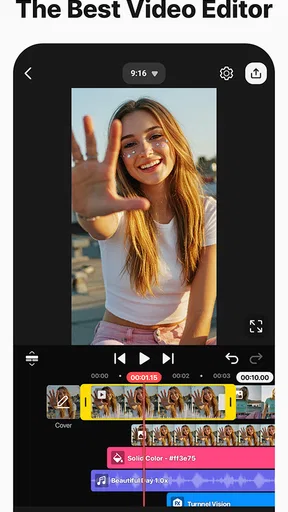
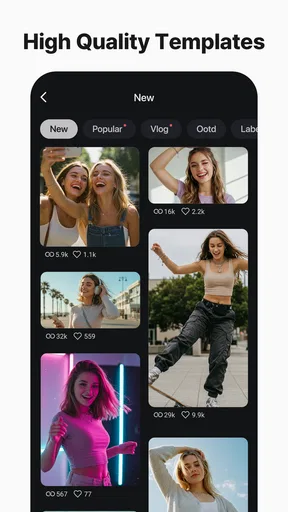
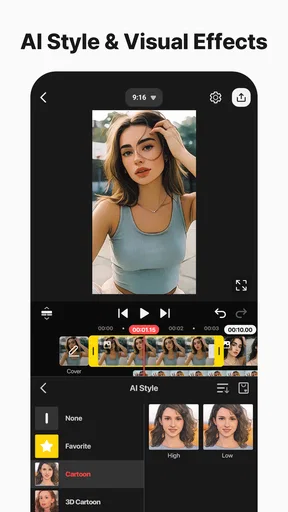
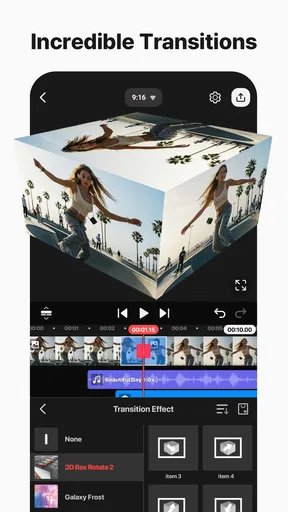
 Analysis by AppCompare
When I edit on a phone, I care as much about whether I can follow the timeline as I do about the final look. A mobile editor can offer plenty of controls and still be tiring if its labels, buttons, or layered tracks are hard to manage on a small screen. KineMaster gives me a more hands-on editing space than a simple trim-and-share tool, which is useful when a clip needs more than a quick polish. That flexibility also makes the choice of device, project size, and working conditions matter.
Reading the timeline and finding your way
The first decision is straightforward: begin a project or return to one already in progress. Once editing, the timeline becomes the main place to understand how the video is assembled. Clips, sound, titles, and other layers can sit in relation to one another, so I find it helpful to work through one task at a time rather than open every control at once. A sensible first pass is to arrange the main footage, then add titles or visual layers, and finish by balancing sound.
That order is more than a tidy habit. When several elements overlap, a small adjustment can affect the rhythm or obscure something underneath. I recommend checking the preview after each meaningful change, especially after placing text over moving footage or aligning an extra audio track. If a project starts to feel confusing, temporarily simplifying the timeline—by focusing on the section you are editing instead of jumping around—makes it easier to spot what needs attention.
Guides and Analysis on KineMaster - Video Editor
Where the extra control pays off
Simple editors are often quicker when the job is only to trim a beginning and end, add a preset look, and post. KineMaster is a better fit when I want to make deliberate choices: layer an image over a clip, place text at a particular moment, or shape a sequence with separate sound. The trade-off is that more control asks for more decisions. Someone who edits occasionally may prefer a one-tap template workflow; someone learning how layers interact can get more room to experiment here.
For a short how-to video, for example, I would keep the recorded explanation as the backbone, add a brief title where the topic changes, and use a voiceover or additional sound only where it clarifies a step. I would avoid decorating every moment. On a phone screen, excessive text and effects can compete with the actual demonstration, and a restrained timeline is easier to revise if the recording needs a trim.
Practical adjustments for different needs
Motor comfort matters during detailed editing. Trimming, positioning, and selecting individual layers can involve repeated small touches, so I would avoid doing a long, precise session while walking or holding the phone awkwardly. Resting the device on a stable surface and taking the edit in short sections can make the work less fiddly. If precise touch selection is uncomfortable, this kind of timeline editor may be more frustrating than a simpler app with fewer controls.
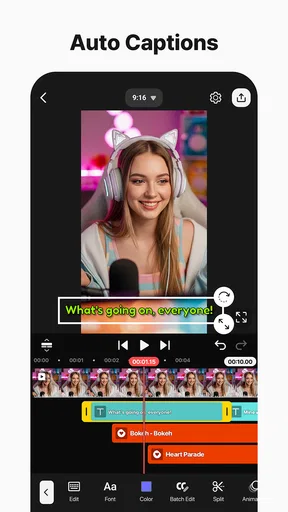
There is also a sensory side to editing. A busy preview with text, footage, and several sound sources can be hard to judge all at once. I find it useful to listen to the audio separately from visual fine-tuning, then watch the sequence without stopping to check whether the elements feel coherent together. For viewers who rely on clear visual information, keep captions or labels readable against the background and give them enough screen time; those choices improve a video even when the editor itself is not the focus.
Worth Reading Before You Choose

Baby Panda World Brings Quick Play to Modern Phones, but Its Game Library Feels Busy

ESPN’s Live Game View Makes Following Close Games Easier

QuizzLand Review: A Good Fit for Short Trivia Breaks, Not Every Player

Basketball Stars: Multiplayer Is Fast, but Can It Recover When Matches Go Wrong?

WEBTOON Turns Phone Updates Into a Better Reading Routine

Link to Windows Runs on Shared Habits, Not Social Feeds
In everyday use, the phone is convenient but not always the best place to finish a demanding project. A quick birthday montage or a short social clip can be assembled in spare moments, while a long edit with many high-resolution clips may feel less responsive and harder to inspect. For that larger job, I would consider a desktop editor with a bigger display and more room to handle a complex timeline. The right choice depends less on ambition than on how much detail the project actually needs.
Getting Started with KineMaster
First things first, downloading the app is a breeze. It's available on both Android and iOS, so no one's left out. Once installed, you're greeted with a clean and straightforward interface. The home screen is intuitive, with options to start a new project or continue working on an existing one. It didn’t take long for me to feel like a pro navigating through the options.
Features That Stand Out
The sheer number of features in KineMaster is impressive. From the basics like trimming and splicing clips to more advanced options like multi-layer editing, it's all there. And the best part? The controls are user-friendly, so you don’t need to be Spielberg to create something amazing.
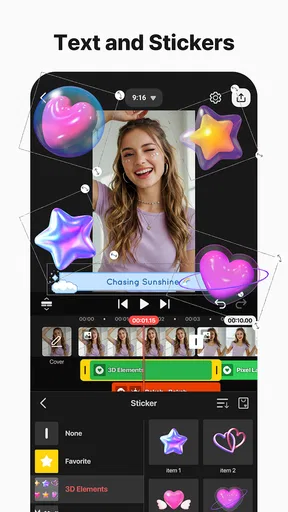
Layered Editing: This is where KineMaster truly shines. You can add multiple layers of video, images, text, and even handwriting. This feature allows for a level of creativity that’s hard to find in other mobile editors.
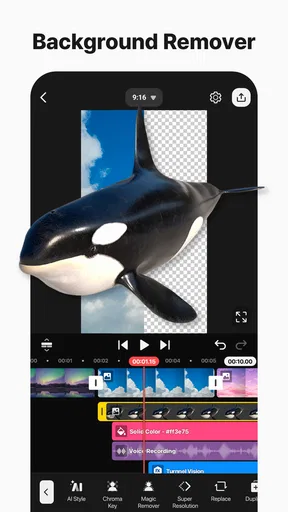
Chroma Key: Ever wanted to play around with green screen effects? KineMaster’s chroma key is surprisingly effective. I tried replacing backgrounds in a few clips, and the results were impressive for a mobile app.
Audio Features: The app includes a robust set of audio editing tools. You can add multiple audio tracks, adjust volume levels, and even tweak the audio with EQ presets. There’s also a voice changer if you’re in the mood for some fun.
What’s the Catch?
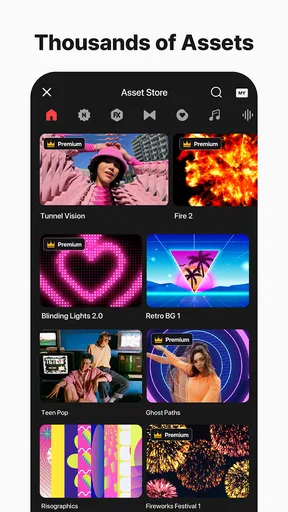
Now, while KineMaster is packed with features, not everything is free. The free version includes watermarks on your videos, which can be a bummer if you’re looking to produce professional-grade content. To remove these and unlock more assets, you’ll need to opt for a subscription. It’s not overly pricey, but it’s something to consider.
Another thing I noticed is that while the app is generally smooth, it can lag a bit with larger projects. It’s not a deal-breaker, but something to keep in mind if you’re working on a lot of high-res videos.
Choosing it for the right job
I see this as a strong choice for people who want to learn editing by doing it, rather than relying on an automatic template to make every decision. A creator making short tutorials, a parent assembling a family clip, or a small business owner preparing a simple product video can all benefit from the ability to put footage, labels, and sound together on one timeline. The key is keeping the project focused: layers help explain or emphasize a moment, but they do not automatically make a video clearer.
For a realistic weekend edit, imagine putting together a short clip from a family outing. I would first pick the few moments that tell the story, trim away pauses, and arrange those shots in order. Then I might add a title card and a music bed, checking that the music does not drown out any spoken comments. Saving time for one uninterrupted playback is worthwhile: tiny timing issues often stand out more when I stop tapping and watch the whole sequence as a viewer.
Compared with a basic social-media editor, KineMaster gives more room to position separate elements and shape sound, but it requires more manual attention. Compared with desktop software, it is easier to carry into a casual workflow, yet a phone display is a real constraint when the timeline gets crowded. I would choose it for a compact project that needs layered edits; I would choose a desktop tool for long-form work, extensive revisions, or fine inspection across many tracks.
One useful trade-off is to treat effects as supporting tools, not a checklist. Chroma key can help when the subject is well separated from the background, but the result depends on the footage and the care taken with the replacement scene. I would test the effect on a short section before building an entire edit around it. Similarly, handwriting or text layers can point out a detail, but keeping them brief and legible usually serves the viewer better than covering the frame with annotations.
People often wonder whether they can make something worthwhile without paying. The app is free to install, but the free version places a watermark on exported videos; that matters if the result needs to look unbranded. In-app purchases range from under a dollar to nearly seventy-eight dollars per item, so I would check the purchase options shown in the app before deciding what, if anything, is worth paying for. The app is rated for Everyone, and it is made by KineMaster, Video Editor Experts Group.
Who may find it less comfortable
For someone with low vision, detailed work on a small screen may demand frequent zooming or careful inspection, especially when several visual layers overlap. I would keep titles high-contrast and uncluttered, and preview the finished video on the kind of screen where people will watch it. Those are practical editing habits, not a claim that the app includes a particular accessibility mode. If text size, high-contrast controls, or hands-free editing are essential to your workflow, check the app directly on your device before committing to a substantial project.
People sensitive to rapid visual changes or layered sound may prefer a calmer workflow: build the cut first, add one effect at a time, and review audio and picture in separate passes. This approach also helps beginners understand which change caused a problem. If making small touch adjustments is painful or unreliable, the layered timeline may be the main obstacle rather than a lack of editing skill, and a simpler editor—or a larger-screen setup—may be a better match.
The practical details are reassuring for a broad audience: the app is free, carries an Everyone content rating, and supports devices running Android 8.0 or later. It has been available since late 2013, and version 8.0.14.36002.GP is the current Android version discussed here. Its reach is substantial, with more than 500 million installs; its average is 4.4 from about 6.1 million ratings, alongside roughly 89,000 written reviews. Those figures suggest a widely used tool, but they do not tell me whether its touch workflow will suit a particular person, so a small test project is still the best way to decide.
Perfect for Everyone?
Whether you’re a vlogger, a social media enthusiast, or just someone who likes capturing moments, KineMaster has something for you. The app provides a nice balance between being feature-rich and user-friendly. It doesn’t overwhelm you with technical jargon, which I appreciated.
For educators and professionals, the app’s ability to create polished presentations and tutorials is invaluable. The ease of adding voiceovers and annotations makes it a great tool for creating engaging content on the fly.
Final Thoughts
All in all, KineMaster is a robust video editing app that offers a lot of bang for your buck. While the free version has its limitations, the paid subscription opens up a world of possibilities. It’s a powerful tool that can transform your video projects from ordinary to extraordinary without needing a desktop setup.
For anyone looking to dive into the world of mobile video editing, KineMaster is definitely worth checking out. It's got the features, the flexibility, and the fun factor to keep you hooked. So go ahead, give it a try, and unleash your inner filmmaker!
An inclusive choice, with real trade-offs
My inclusive verdict is that this editor can serve a wide range of creative goals, but its flexibility should not be confused with effortless access for every person or situation. Its strongest audience is someone comfortable working visually with touch controls who wants more say over timing, layers, and sound than a quick-edit app usually offers. Its weaker fit is someone who needs a very simple, low-effort workflow or expects a crowded, detailed project to be comfortable on any phone.
I would start with a short, low-stakes edit before choosing it for regular work. Try trimming a few clips, adding one title, and listening back to a voice track; that small test reveals whether the timeline, touch precision, and preview feel manageable on your device. If those basics feel clear, KineMaster offers room to grow. If they feel tiring, choosing a simpler editor is not settling for less—it is choosing a workflow that better fits the person doing the editing.
Pros
- User-friendly interface for all skill levels.
- Supports multiple video layers and effects.
- High-quality export options available.
- Real-time video and audio recording.
- Wide range of transitions and themes.
Cons
- Frequent ads in the free version.
- Subscription required for full features.
- Occasional performance lags on older devices.
- Limited free music and effects library.
- Watermark on videos in the free version.
FAQs for KineMaster - Video Editor
What platforms is KineMaster compatible with?
KineMaster is available for both Android and iOS devices, making it accessible to a wide range of users. It is optimized to run smoothly on smartphones and tablets, allowing users to edit videos on-the-go with an intuitive interface. Always ensure your device meets the minimum system requirements for optimal performance.
Does KineMaster support multi-layer editing?
Yes, KineMaster supports multi-layer editing, allowing users to add multiple layers of video, images, and text. This feature provides flexibility to create complex and professional-looking videos. Users can also incorporate handwriting and drawing layers, enhancing creativity and customization in their projects.
Are there in-app purchases in KineMaster?
KineMaster offers a free version with basic features, but there are in-app purchases available. Users can upgrade to the premium version, which removes the watermark and unlocks additional features and assets. Subscribing to the premium version also provides access to a vast library of music, effects, and transitions.
Can KineMaster export videos in high resolution?
KineMaster allows users to export videos in various resolutions, including high-definition formats up to 4K, depending on the capabilities of your device. This ensures that your final product maintains high quality, suitable for professional use or sharing on social media platforms. Always check your device’s compatibility with the desired resolution.
Is there a community or support available for KineMaster users?
KineMaster has an active user community and provides support through various channels. Users can access tutorials, forums, and FAQs on the official website. Additionally, there are numerous online resources, including video tutorials and user groups, where users can share tips and seek advice to enhance their editing skills.


